API & MCP
Put diagnostics and actions to work from your tools.
Read endpoint data, request an investigation, retrieve findings, update tickets, and run permitted endpoint actions from your existing tools. Use REST for software, scripts, and workflows, or MCP for compatible AI clients and PSA agents. Each connection works within its configured access.
Included with Hero. Compare Plans
Bring your own agents. Keep your own rules.
Connect ChatGPT, Claude, Codex, Hermes, OpenClaw or Grok through MCP, or build on the REST API. Gather endpoint evidence, update tickets and request permitted actions from the tools you already use.
Choose each connection's rights and revoke access when needed. API and MCP actions do not prompt for technician approval; build sign-off into your connected workflow or start with read-only access.
What you can do
The same operations, through MCP or REST.
Start with read-only access to inventory and diagnostics. Add ticket updates or endpoint actions when a connection needs them. Available operations always depend on its permissions. API and MCP actions do not prompt for technician approval; any required sign-off belongs in your connected workflow.
Find endpoints and inventory
Look up devices, connectivity, assigned sites, and the last collected hardware and software inventory.
Ask and investigate
Ask a read-only question about a connected endpoint or start a background investigation and retrieve its findings.
Read live diagnostics
Inspect processes, services, installed applications, updates, user sessions, and event logs.
Keep tickets up to date
Create tickets, update status and assignments, read conversations, and add findings as comments or internal notes.
Manage alerts, organizations, and sites
Review monitoring alerts, close or reopen them, and manage organizations and their sites. For MSPs, organizations are customers; both use the same API operations.
Take permitted endpoint actions
Restart a service, install updates, or restart a device when the connection has those specific rights.
MCP for AI clients and agents
MCP (Model Context Protocol) gives your agents and chat clients a defined set of GenticFlow tools. Work from a compatible chat client, or connect a compatible PSA agent to investigate devices and run the actions its connection allows.
REST for scripts and integrations
Use a versioned JSON API to read inventory, manage tickets, retrieve investigations, and run permitted actions from your own software.
ChatGPT example
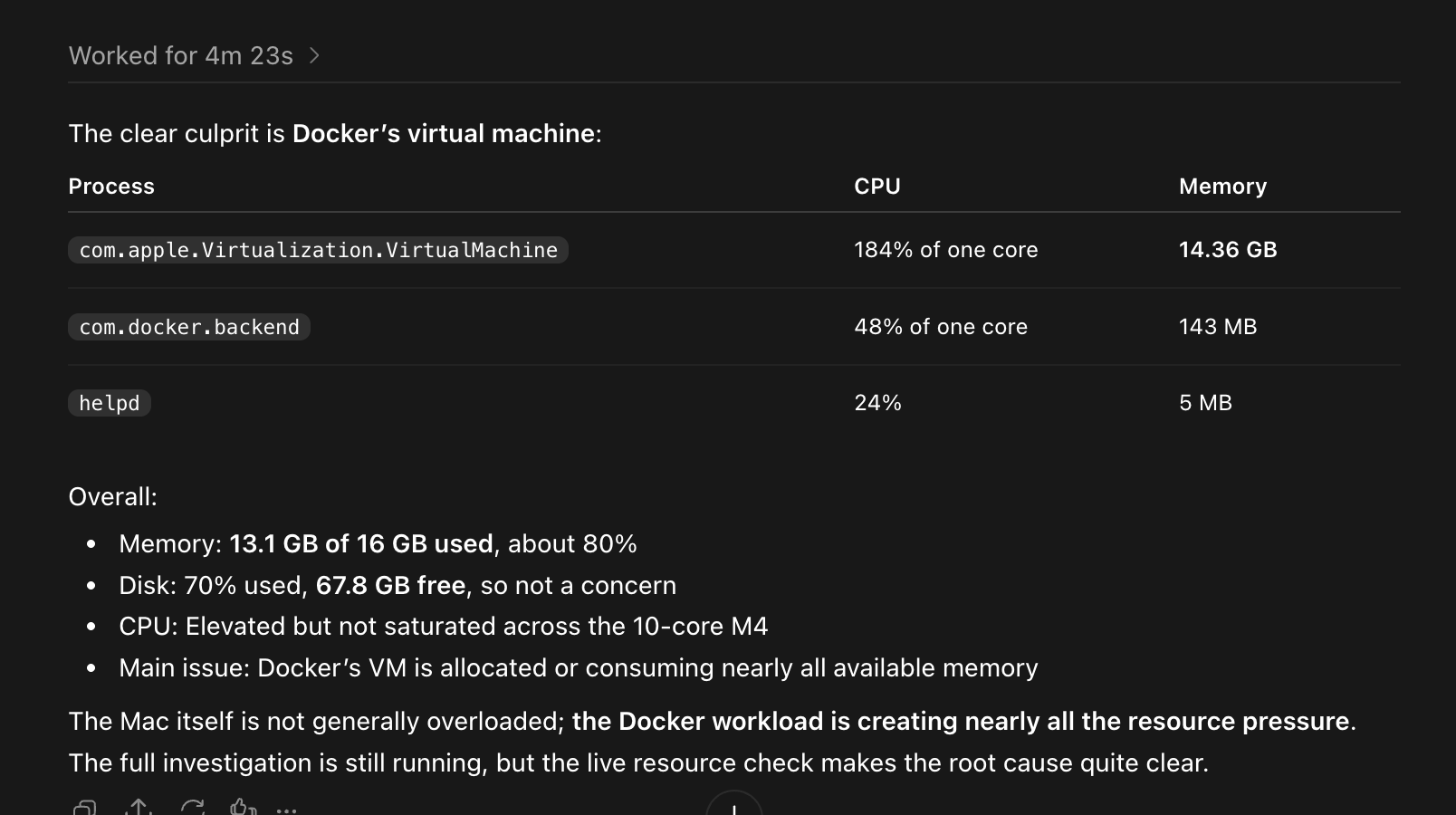
Investigating resource usage
In this ChatGPT conversation, a technician asked GenticFlow to investigate resource usage. The response used live process and system data to highlight Docker's virtual machine as a major resource consumer, while the background investigation continued.
The request
“Investigate what takes the most resources on that Mac mini.”
Choose your client
Guided setup in GenticFlow for these clients, plus compatible custom MCP clients.
- ChatGPT
- Claude
- Claude Code
- Codex
- Hermes
- OpenClaw
- Grok / Grok Bot
- Custom
Agent-to-agent workflows
Your PSA agent coordinates. GenticFlow investigates and acts.
Your PSA's agent can use MCP to ask GenticFlow to investigate a device, collect the findings and run the actions its connection allows. Your PSA keeps the ticket. If you want a sign-off step, it lives in your PSA workflow; GenticFlow doesn't add one.
The agents gather evidence
The PSA agent identifies the affected endpoint and asks GenticFlow to run read-only diagnostics or an investigation. It retrieves the findings for the ticket.
Your workflow decides
If your process needs a sign-off, your PSA agent shows the evidence and the proposed action to a technician and waits. You build this step; GenticFlow doesn't add it.
GenticFlow runs the permitted action
The PSA agent calls an MCP tool its connection allows, such as restarting a service. GenticFlow checks the request and sends the permitted action without a separate technician approval step. The agent checks the result and can request a follow-up diagnostic before updating its ticket.
This is a workflow you can build with a compatible PSA agent. GenticFlow checks permissions on every API and MCP request but does not add a separate technician approval step. If you need sign-off, the PSA or agent workflow must obtain it before requesting the action. Use read-only rights for connections that should only gather evidence.
Examples to build
Print jobs are stuck
Your agent asks GenticFlow to check the Print Spooler service and recent event logs, then requests a service restart if its connection allows it. If you want a technician to OK the interruption first, add that step to your PSA workflow. After the restart, the agent checks the service state and asks the user to try printing before marking the ticket resolved.
A Windows device is missing updates
Your agent checks available updates and installation history, then asks GenticFlow to install the set you choose and checks the installation outcomes. Pending restarts show up in the diagnostics, so your workflow decides when to restart. Any sign-off happens in your workflow before the request is sent.
A workstation is barely responding
Ask GenticFlow which processes are using CPU and memory. If one process is the cause, your agent can request that it be stopped when its connection has that right. Stopping a process can lose unsaved work, so you may want a technician sign-off in your own workflow first. Afterward, the agent rechecks resource use and records whether the slowdown remains.
Build with the REST API
Read device data. Update tickets. Run actions.
Find a device, retrieve its inventory, start an investigation, and add the findings to a ticket. Use API keys with assigned roles or OAuth access tokens. Read data as JSON, with pagination for resource lists such as endpoints, tickets, and alerts.
Your deployment's interactive OpenAPI documentation lists the supported operations, required rights, inputs, and responses.
Find API Docs in Settings, API & MCP Access, your application, then API & MCP Info.
curl --get "https://YOUR-GENTICFLOW-HOST/api/v1/endpoints/" \
  --header "Authorization: Bearer $GF_API_KEY" \
  --data-urlencode "search=mac mini"
Replace the host with your GenticFlow address and set GF_API_KEY to your stored API key. The response lists matching devices you can access. Use a returned device ID in subsequent calls.
Access you control
Choose what each connection can do.
Choose each connection's rights
Give each application only the operations it needs. API keys also follow their assigned role; OAuth connections follow the signed-in user's permissions and access scope.
Added OAuth rights need consent
Adding application rights does not expand an existing OAuth connection. The user must consent again. Removing rights reduces access on subsequent requests.
Review the activity
Review recorded API and MCP requests in the application's Activity section. Endpoint changes, sensitive reads and Ask requests have Command Audit records. Routine diagnostic lookups are excluded from Command Audit; successful routine lookups also omit Activity records.
Cut Off Application Access
Admins can disable an application directly in GenticFlow to block subsequent API and MCP requests. You can also revoke individual API keys or remove MCP clients. Optional IP restrictions provide another access boundary.
Get connected
Set it up in API & MCP Access.
On Hero, open Settings and choose API & MCP Access. If it is not visible, ask your administrator to check your Automation entitlement and API access permissions.
Create an application
Name the connection, choose its access rights, and save. Reopen it from the application list. Use separate applications for integrations with different responsibilities.
Choose MCP or API
In MCP Clients, choose Connect Client and follow its setup guide. For REST, have an administrator open API Keys and create a key with the appropriate role.
Connect and review
API & MCP Info has your URLs and API Docs link. Review access during OAuth sign-in, then check the application's Activity after your first request.
FAQ
API & MCP questions
Connection options, permissions, and what you need to get started.
Can AI and integration access be cut off?
Can AI and integration access be cut off?
Yes. GenticFlow can cut off AI access at the infrastructure level for models we supply. If you use your own model provider, you control access and can cut it off with that provider. Separately, admins can disable an application in GenticFlow to block subsequent API and MCP requests. These controls do not promise to cancel endpoint actions already dispatched.
Which plan includes API and MCP access?
Which plan includes API and MCP access?
API and MCP access are included with Hero, through the Automation module. They are not included with Smart. An administrator or authorized manager with API access permissions configures applications and their rights. API key creation requires an administrator.
Which AI clients can I connect?
Which AI clients can I connect?
GenticFlow provides setup guides for ChatGPT, Claude, Claude Code, Codex, Hermes, OpenClaw, Grok / Grok Bot, and a Custom option for other compatible MCP clients. The guide explains the sign-in and configuration needed for the selected client. Client-side availability can depend on your account and workspace settings.
Does the AI client get unrestricted endpoint access?
Does the AI client get unrestricted endpoint access?
No. MCP lists only tools allowed by the connection's effective permissions, and every call is authorized again. Ask and investigations use read-only diagnostics. Mutating tools, such as restart or uninstall, can execute when their rights are granted; use a read-only application if you only want diagnostics.
Can I add a sign-off step for API or MCP actions?
Can I add a sign-off step for API or MCP actions?
Yes, in your own workflow. GenticFlow checks the request and sends the permitted action without a separate technician approval step. Endpoint policy, connectivity and support still apply. Your PSA or agent workflow can show the proposed action to a technician and send the request once they agree, or you can keep the connection read-only. This is a workflow you build, not a ready-made integration with every PSA.
Where do I find the API documentation?
Where do I find the API documentation?
Open Settings, API & MCP Access, then your application and API & MCP Info. The API Docs link opens the interactive reference for your deployment, including request and response schemas and each operation's required rights. The same section provides the API base URL and MCP connection URL.
Do live diagnostics require the GenticFlow agent?
Do live diagnostics require the GenticFlow agent?
Yes. Live endpoint checks and investigations require a connected GenticFlow agent and the applicable permissions. Cached inventory can be read while an endpoint is offline. Ask and investigations use your configured AI model and are subject to the applicable model allowance.
Is this the same as connecting external MCP servers to GenticFlow?
Is this the same as connecting external MCP servers to GenticFlow?
This page covers external clients connecting to GenticFlow. The separate MCP Servers feature lets GenticFlow's own agents use tools from other services. Both are available with Hero.