GenticFlow
For IT TeamsFor MSPsHow It WorksPricing

Technician workbench

A workbench, not five tabs.

The user request, live device state, action history, remote session, secure terminal, and file transfer in one support view. Every action leaves a resolution record. Approvals and evidence are built in.

Start FreeSee the Support Loop

Built around the way technicians actually work

Each tool has a job, a control boundary, and a resolution record.

The workbench is not a pile of buttons. Each surface exists for a specific support moment, and every action leaves evidence for the ticket.

AI-assisted technician work

Technician Chat

Ask GenticFlow to inspect the endpoint, explain findings, recommend the next step, request approval, run an approved action, and summarize what happened.

Use it for
Ask for the next diagnostic step
Request Flush DNS or another native action
Explain why approval is required
Guardrails
Approval policies apply before execution
Actions stay tied to the endpoint and ticket
GenticFlow shows what it is about to do
Proof captured
Chat transcript
Approval request and response
Execution result
Flush DNS through chat
Technician Chat
Adele - Support Chat
Flush DNS on LT-FIN-128. User says the VPN portal intermittently fails.
AI
I can run the native flush_dns action. Your Endpoint Network Changes policy requires approval first.
Approval request
Run Flush DNS on LT-FIN-128
approved
Approved by NOC Lead. Reason: local resolver cache fix.
native-action flush_dnssuccess
DNS resolver cache flushed. Verification lookup succeeded and the resolution record was updated.
User-facing support

End-User Chat

Keep users informed, ask clarifying questions, offer approved L1 quick actions, and hand off to a technician without losing the ticket thread.

Use it for
Ask what changed
Offer L1 quick actions
Tell the user when the fix is complete
Guardrails
Only approved actions are exposed
Escalation keeps full context
Messages are tied to the ticket
Proof captured
User replies
Quick action result
Final user-facing note
Keep Sarah informed
Adele
Sarah Chen / Finance
resolved
A
The portal should be available again. Can you retry it from Chrome?
It loads now. Thanks.
SC
Quick action result
Browser refresh verified
User confirmation and final note attached to ticket #18432.
Hands-on user support

Remote Control

Join the user session when the issue needs eyes-on-screen support, guided steps, or visual confirmation that the fix worked. Remote control is available for Windows, Linux, and macOS endpoints.

Use it for
Observe a user-facing error
Guide sensitive app changes
Support Windows, Linux, and macOS users
Guardrails
Technician-owned session
User-aware handling
Session associated with the support record
Proof captured
Session metadata
Technician notes
Ticket timeline entry
Screen-side confirmation
Sarah Chen / LT-FIN-128
Windows 11 / user consent granted 14:22
live
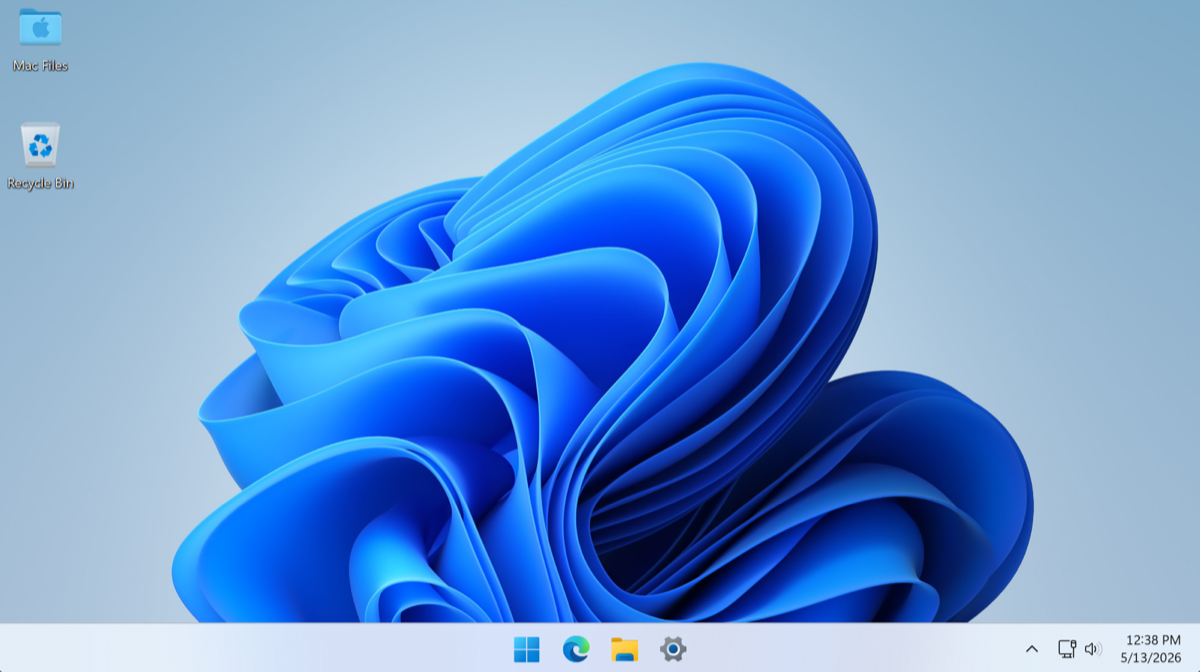
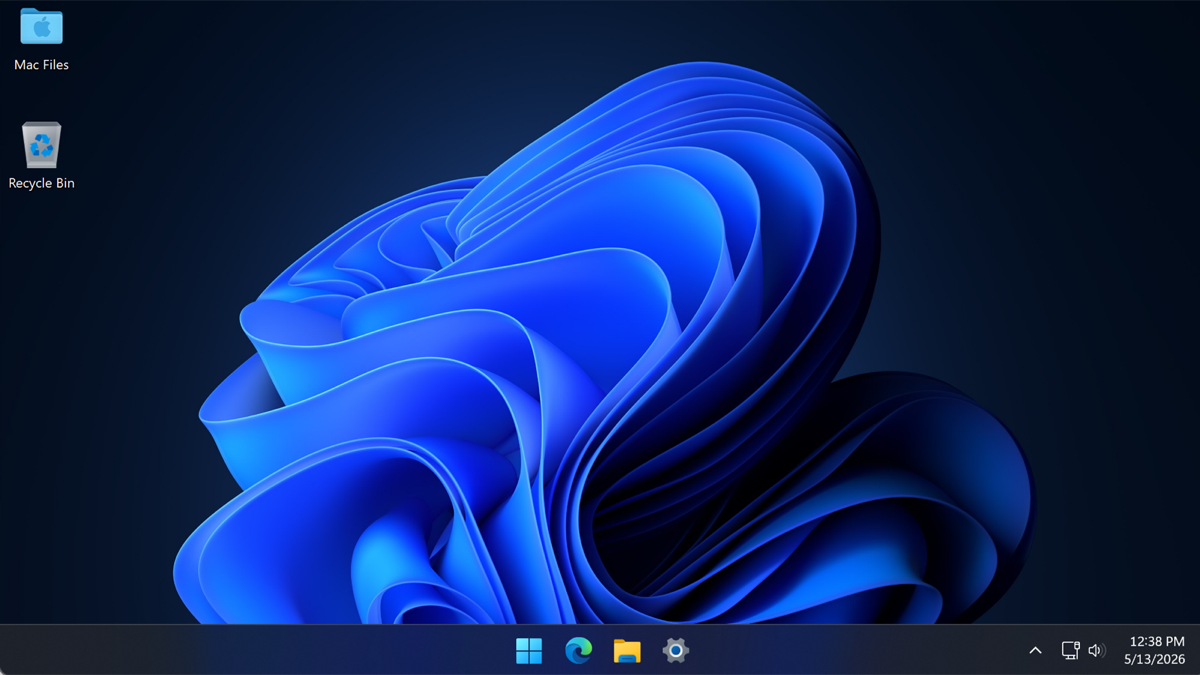
Remote control session showing a Windows 11 desktopRemote control session showing a Windows 11 desktop
WindowsLinuxmacOS
Take controlScreenshotSession noteEnd session
Screenshot and session note attached to ticket #18432.
Move support artifacts

File Transfer

Upload installers, retrieve logs, collect screenshots, or move vendor repair tools without switching to a separate support product.

Use it for
Retrieve logs
Send an installer
Collect screenshots or exports
Guardrails
Scoped endpoint access
Transfer record tied to the ticket
Approval where policy requires
Proof captured
File name
Direction
Timestamp and technician
Collect the evidence
Transfer queue
Scoped to LT-FIN-128 and ticket #18432
browser-diagnostics.zip84%
Upload
vendor-fix.msi
Attached
screenshot.png
Command execution with evidence

Secure Terminal

Run diagnostics and escalations directly on the endpoint while command text, output, exit status, and timestamps are captured beside the ticket.

Use it for
Run diagnostics
Verify service state
Collect command output
Guardrails
Risk checks before execution
Approval gates for sensitive commands
Output retained with the work
Proof captured
Command text
stdout and stderr
Exit status and timestamp
Network diagnostic
LT-FIN-128 / pwshticket #18432
$ nslookup netsuite.com
Non-authoritative answer: 203.0.113.42
exit 0 / 21 ms / captured
$ Get-Service wuauserv | Select Status, StartType
Running / Automatic
exit 0 / 84 ms / captured
$ curl -I https://netsuite.com
HTTP/2 200 / 183 ms
exit 0 / 196 ms / captured
Catalogued fixes

Native Actions

Use fixed, catalogued actions before generated commands: Flush DNS, clear browser cache, restart spooler, renew DHCP, restart services, and other known-safe operations.

Use it for
Run Flush DNS
Clear browser cache
Restart print spooler or a service
Guardrails
Native action scope is fixed
Required parameters are explicit
Risk and approval policy still apply
Proof captured
Action id
Parameters
Structured result and verification
Approved native fix
Catalogued actions
LT-FIN-128 / risk + approval applied
12 available
Flush DNS
Network
approved
Clear Browser Cache
Browser
ready
Restart Spooler
Service
ready
Renew DHCP
Network
ready
Proof of what already happened

Action History

Review command runs, native action executions, outputs, approvals, and failures so technicians can understand what already happened before rerunning anything.

Use it for
Review previous actions
Avoid duplicate commands
Debug failed fixes
Guardrails
Command history is retained
Approvals are visible
Outputs are tied to execution
Proof captured
Command or action
Approver
Result and output
Avoid duplicate work
Ticket timeline
flush_dns already executed
Approval recorded
Verification passed
No rerun needed
Who, what, where

Device Context

See the device identity, OS, ownership, policy context, organization, user, source connector, and health signals before taking action.

Use it for
Confirm the right device
Check OS and ownership
Understand connector and policy context
Guardrails
Read-only inventory view
Tenant and organization scoped
Context used before action selection
Proof captured
Endpoint identity
Organization and user
Current state snapshot
Before touching the endpoint
Ticket timeline
Device: LT-FIN-128
OS: Windows 11 Pro
User: Sarah Chen
Source: Agent
Live system state

Processes

Inspect running processes, CPU and memory usage, suspicious spikes, stuck applications, and user-session activity before deciding what to restart or close.

Use it for
Find high CPU or memory usage
Identify hung apps
Confirm a process restarted
Guardrails
Kill/restart actions can require approval
Technician sees the target before action
Evidence stays with the ticket
Proof captured
Process name
PID and user
CPU/memory snapshot
Slow workstation triage
ProcessCPUMemory
chrome.exe82%2.4 GB
Teams.exe18%640 MB
spoolsv.exe4%92 MB
Service control

Services

Review service state, startup type, recovery behavior, and recent failures, then start, stop, or restart services through approved actions.

Use it for
Restart spooler or VPN service
Confirm update services are running
Check service startup mode
Guardrails
Service changes can be approval-gated
Actions target named services
State is verified after execution
Proof captured
Service name
Before and after state
Action result
Printer repair
Service control
Before and after state captured
Print Spooler
stuck queue
Restart
Windows Update
running
Verify
GlobalProtect
restart queued
Approval
Installed software

Applications

Review installed applications, versions, publishers, install dates, and repair or removal candidates during software and browser support.

Use it for
Confirm app version
Find conflicting software
Prepare install or repair steps
Guardrails
Install/uninstall work follows policy
Publisher and version are visible
Changes are recorded
Proof captured
Application name
Version and publisher
Install or repair result
Outlook issue
Installed software
LT-FIN-128
Microsoft 365 Apps2408repair
Google Chrome124current
GlobalProtect6.2policy
Update state for support investigations

Updates

See pending updates, failed installs, reboot state, and recent patch history when they explain a support issue. Where appropriate, teams can attach patch rules for controlled maintenance across Windows Update, macOS softwareupdate, the Linux package manager, and winget.

Use it for
Apply patching as a fleet policy
Confirm pending reboot and install history
Diagnose a failed Windows Update
Guardrails
Feature updates and macOS major upgrades held back by default
Auto-install runs only inside the maintenance window
Reboot policy is explicit (never / in window / force after N hours)
Proof captured
Patch rule with mode and schedule
Patch Status fleet view
Per-endpoint install-run history
Tuesday 02:00 maintenance window
Tue 02:00 + 2hauto
Windows Update + winget · reboot if required
OS pending
2
3rd-party
5
Last scan
12 min ago
Reboot
Pending 3h
Last run: 6 installed, 1 held back (feature update)
Windows event evidence

Windows Event Viewer

For Windows endpoints, technicians can inspect relevant event logs to understand service crashes, update failures, driver errors, authentication issues, and application faults.

Use it for
Find service crash events
Check update errors
Correlate app faults with the ticket
Guardrails
Read-only event inspection
Relevant events are captured as evidence
Escalations include event context
Proof captured
Log name
Event ID
Timestamp and rendered message
Service crash evidence
Filtered Windows eventslast 30 min
System7031
Error
Spooler terminated unexpectedly
Application1000
Error
Outlook fault bucket recorded
WUClient20
Error
Windows Update install failed
Proof of work

Timeline and Evidence

Every chat request, approval, terminal command, native action, file movement, verification check, and ticket update lands in one operational record.

Use it for
Review what happened
Hand off escalations
Prove why a ticket was closed
Guardrails
Resolution record by default
Approvals preserved
Verification signal required for closure
Proof captured
Timeline
Approver identity
Verification output
Resolution record
Ticket timeline
14:23 user reports issue
14:24 investigation confirms local DNS/cache issue
14:25 approval granted
14:26 verification passed and ticket updated

Mobile app

All of these tools are available on the mobile app.

GenticFlow Mobile carries the same ticket context, real-time endpoint access, remediation path, resolution status, notes, and evidence record, so technicians can finish ticket work away from the desk. Available on the App Store and Google Play.

Explore the Mobile App
GenticFlow Mobile
Ticket #18432 on mobile
Ticket
affected endpoint and investigation context
Endpoint
live status, terminal, remote, files, commands
Action
remediation available under policy
Closeout
resolve ticket and add technician notes

Governed by default

Power tools with operational control.

Approval policies

Risky commands, destructive actions, production-impacting changes, and customer-specific rules pause for approval before execution.

Native before script

Known fixes use catalogued native actions where possible, so teams get deterministic behavior before generated commands are considered.

Evidence by default

Every terminal run, quick action, investigation, workflow step, and escalation leaves output a technician can review later.

How it fits

Technician work, playbooks, and workflows share the same device foundation.

The workbench is not separate from the support platform. It is the command, context, approval, and evidence layer that technicians, playbooks, and workflows all rely on.

AI chat can ask for input, suggest quick actions, or escalate to a technician.

Playbooks use native actions and verification checks to close known support issues.

Workflows sequence investigations, decisions, approvals, actions, and closeout notes.

The ticket timeline keeps the user, technician, and approver on the same record.

Support metrics show which issue classes are resolved, escalated, or still need technician review.

Policies decide when support tools can run automatically and when approval is required.

The mobile app lets technicians continue ticket work with endpoint access, remediation, resolution notes, and evidence.

Give your technicians a real support bench.

Start with the context and tools technicians already need, then let playbooks and workflows automate the parts that are safe to close.

Explore WorkflowsStart Free
GenticFlow

GenticFlow automates routine IT support: it investigates the affected endpoint, runs approved fixes, and records the outcome. Routine issues resolve under your policies, the user stays updated, and anything that needs a technician escalates with the evidence and writes back to your PSA or ITSM.

|
Download on the App StoreDownload on the App StoreGet it on Google PlayGet it on Google Play

Product

  • How It Works
  • Interactive Demo
  • Technician Workbench
  • Mobile App
  • Resolution Playbooks
  • Automation Workflows
  • Incident Intelligence

Resources

  • For IT Teams
  • For MSPs
  • Solutions
  • Compare
  • Pricing

Company

  • About
  • Why GenticFlow
  • Partners
  • Careers
  • Contact

Reference

  • Security
  • Integrations
  • Success Stories
  • Perspectives

© 2026 GenticFlow Ltd. All rights reserved.

Privacy PolicyCookie PolicyTerms of Service